Add a Co-Teacher to Clever and Canvas Rosters
MySprings has a new Manage Course Teachers tool that lets teachers add co-teachers to their Clever app and Canvas rosters!
What It Does:
1. Allows a Springs teacher to add/remove a co-teacher in Clever and Canvas in one shot, allowing that co-teacher to view grades and progress for that teacher’s students across Clever apps and Canvas courses.
2. Enrolls new co-teacher into all Clever apps at once (includes I-Ready, Branching Minds, ST Math, etc.) as the related Canvas course.
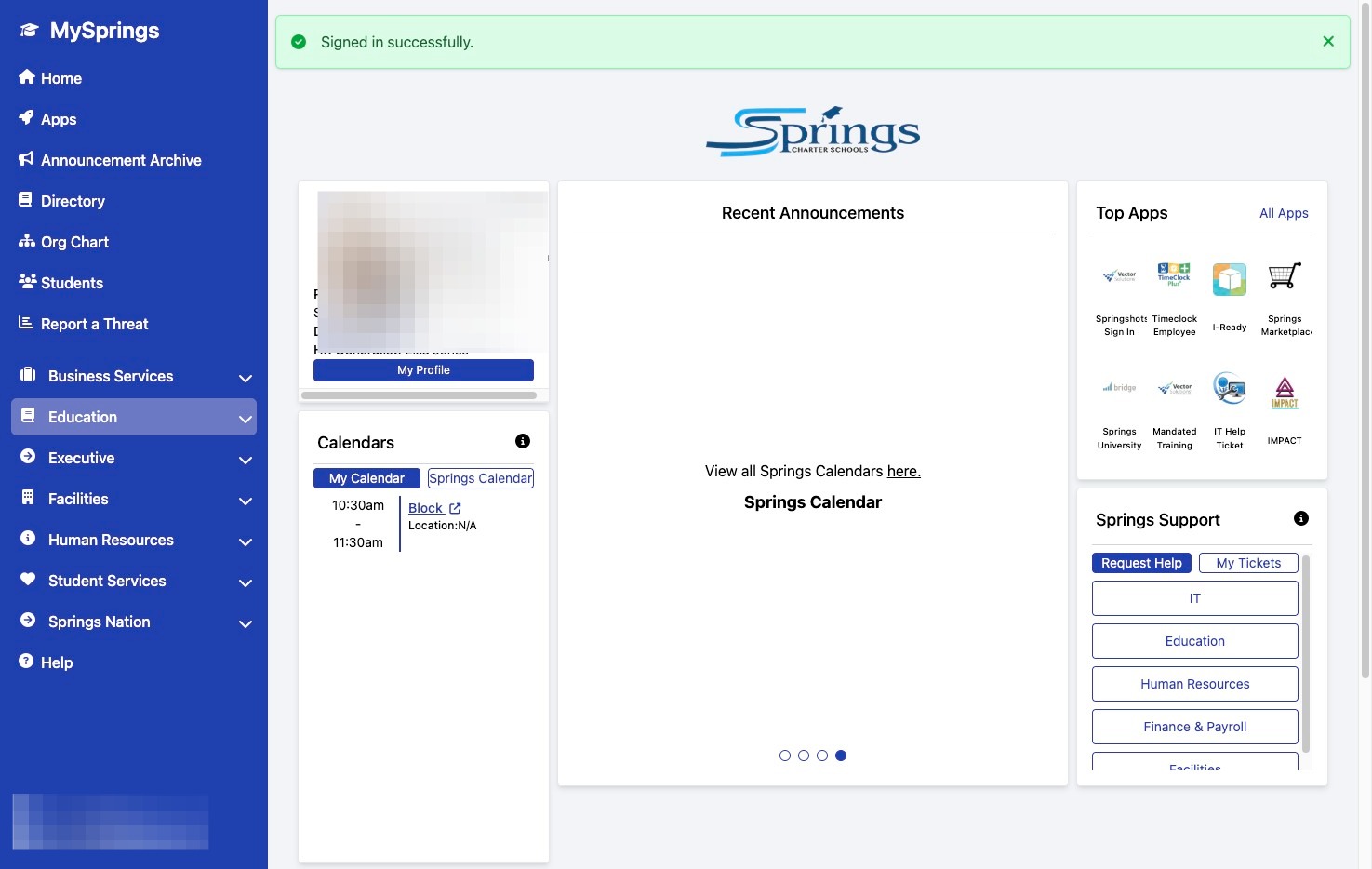
1. Navigate to https://my.springscs.org/
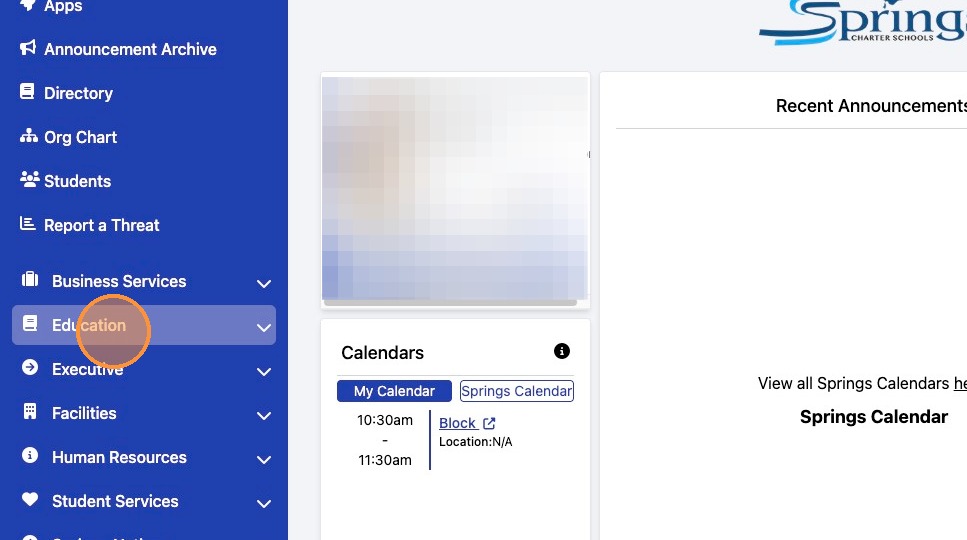
2. Click "Education"
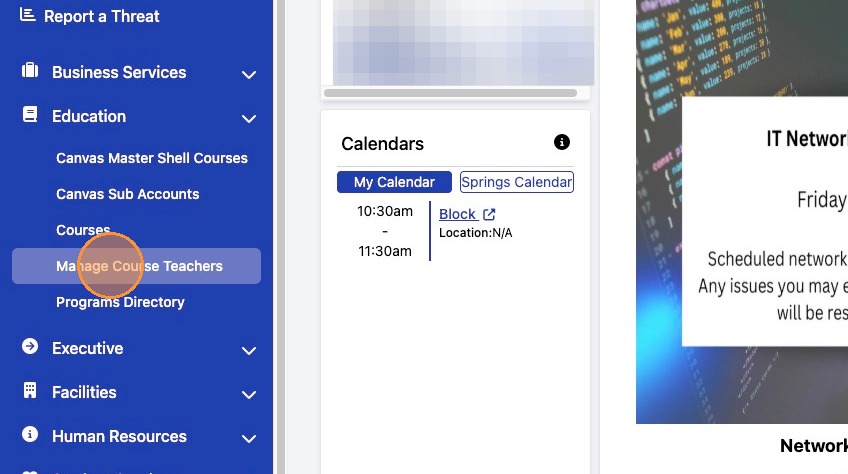
3. Click "Manage Course Teachers"
4. Find the course you would like to add a co-teacher to (most often this is your homeroom).
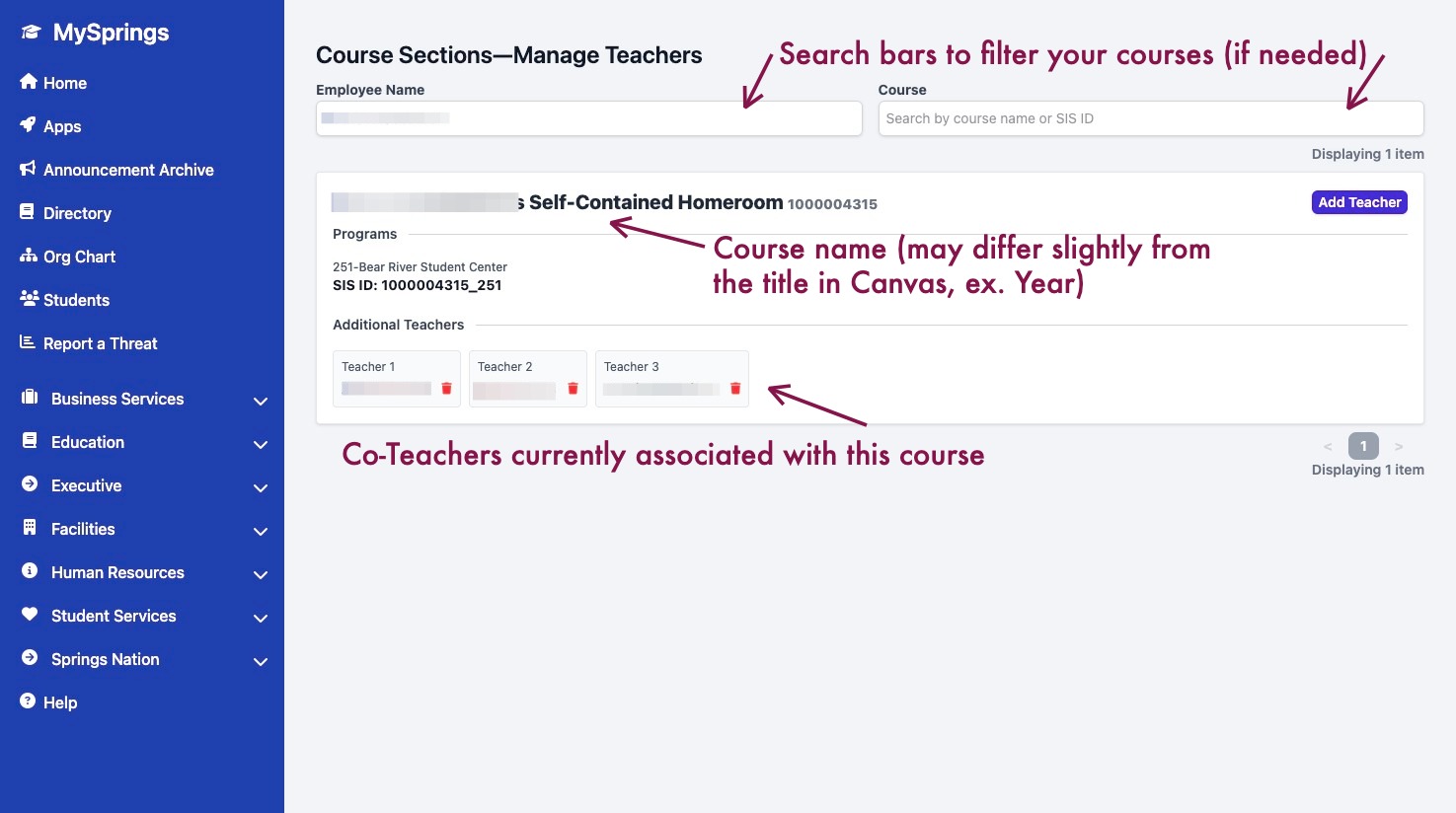
Tip: Tip! On the Course Sections page, you may have more than one course visible in the tool depending upon your role and grade(s) you teach. Use the search bars to filter if needed.
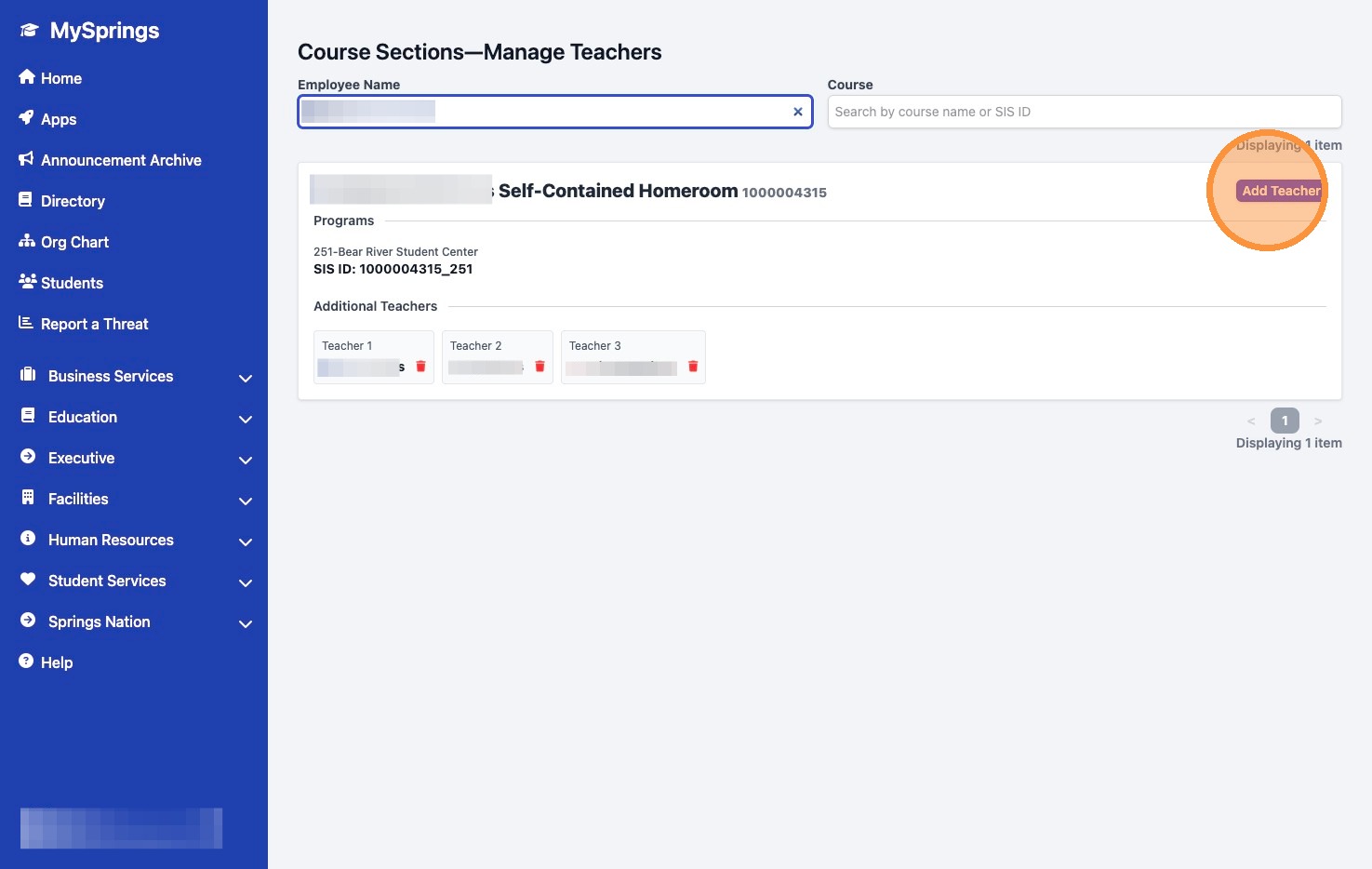
5. Click "Add Teacher"
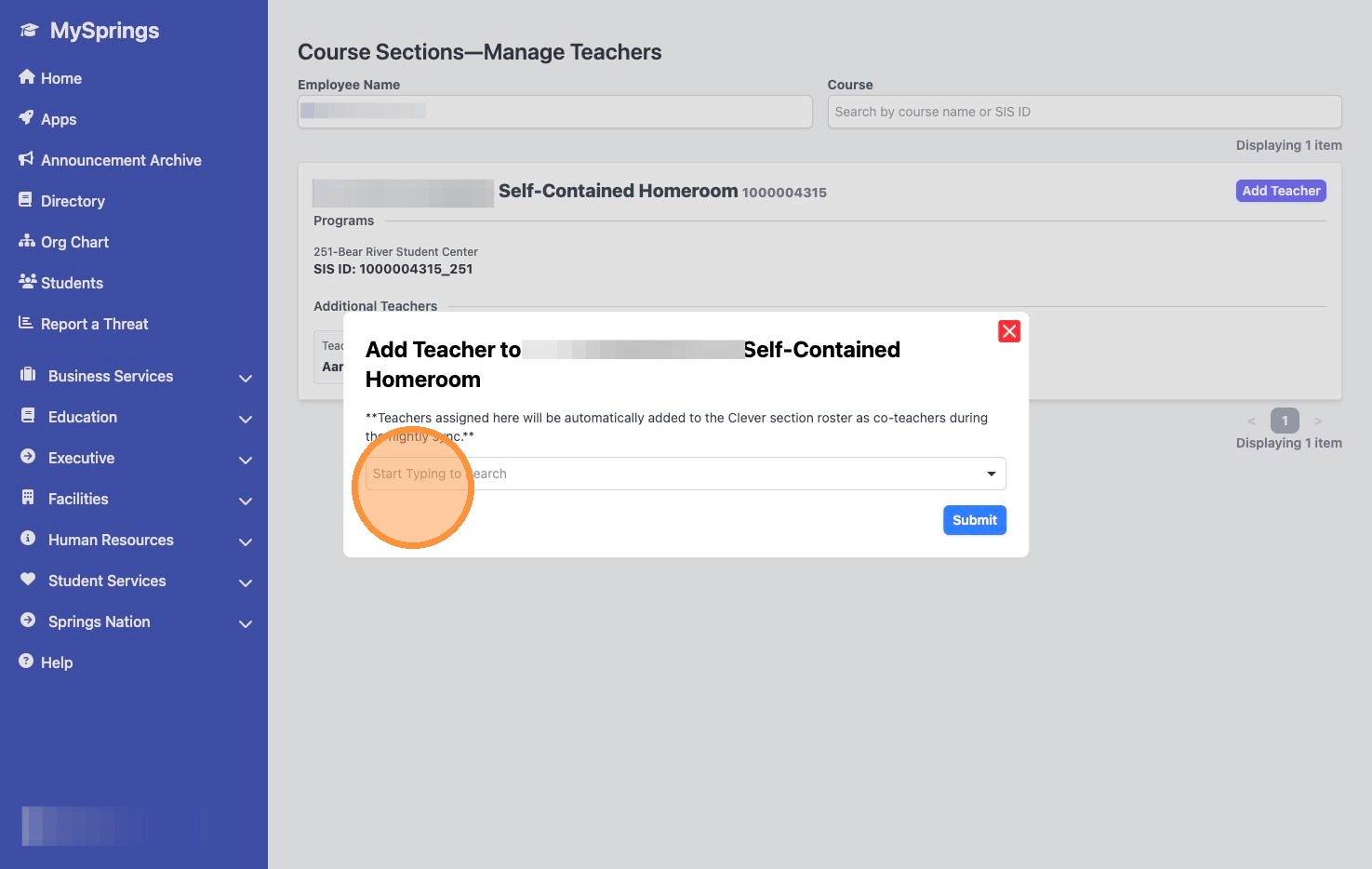
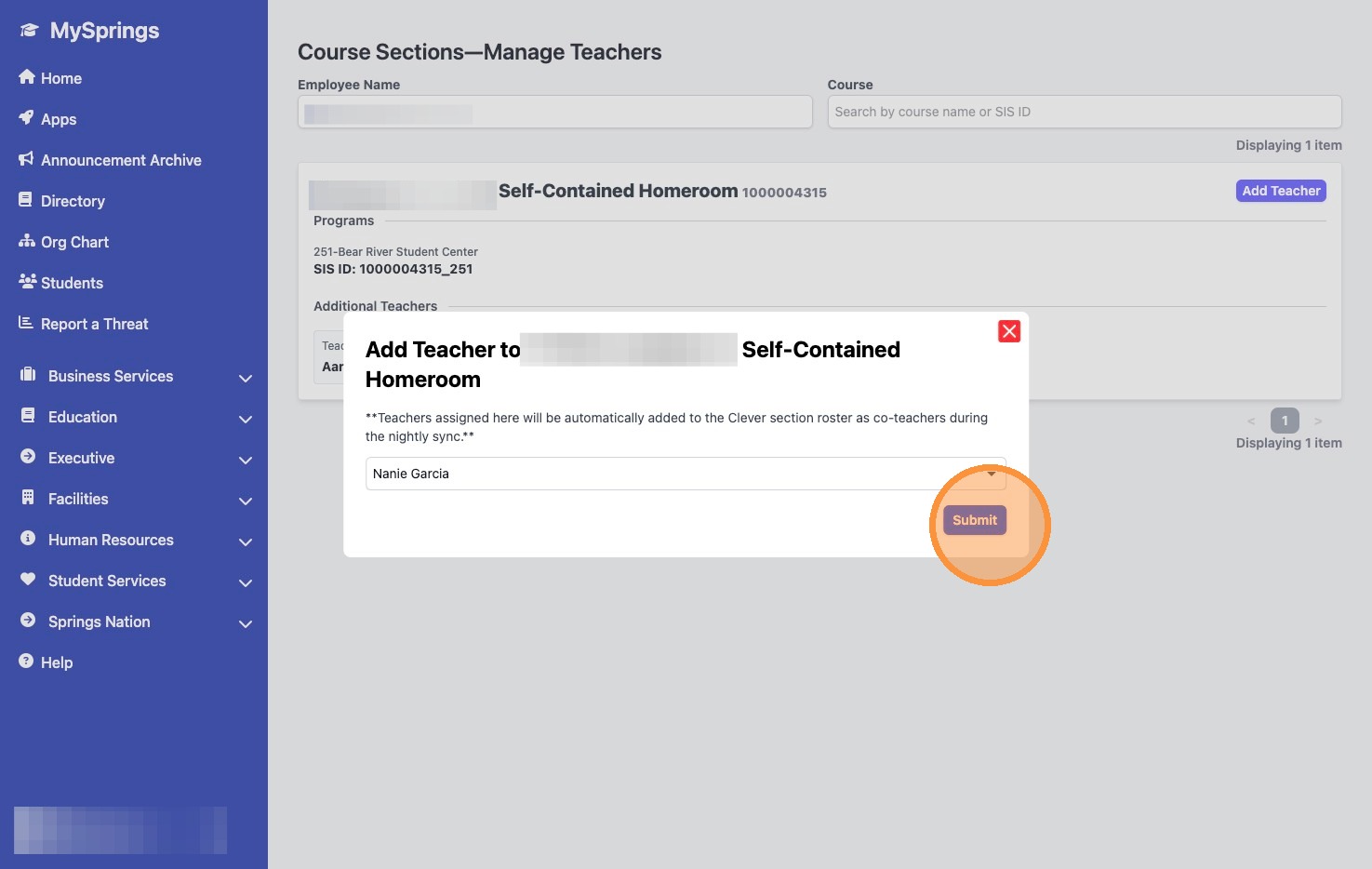
6. Click "Start Typing to Search"
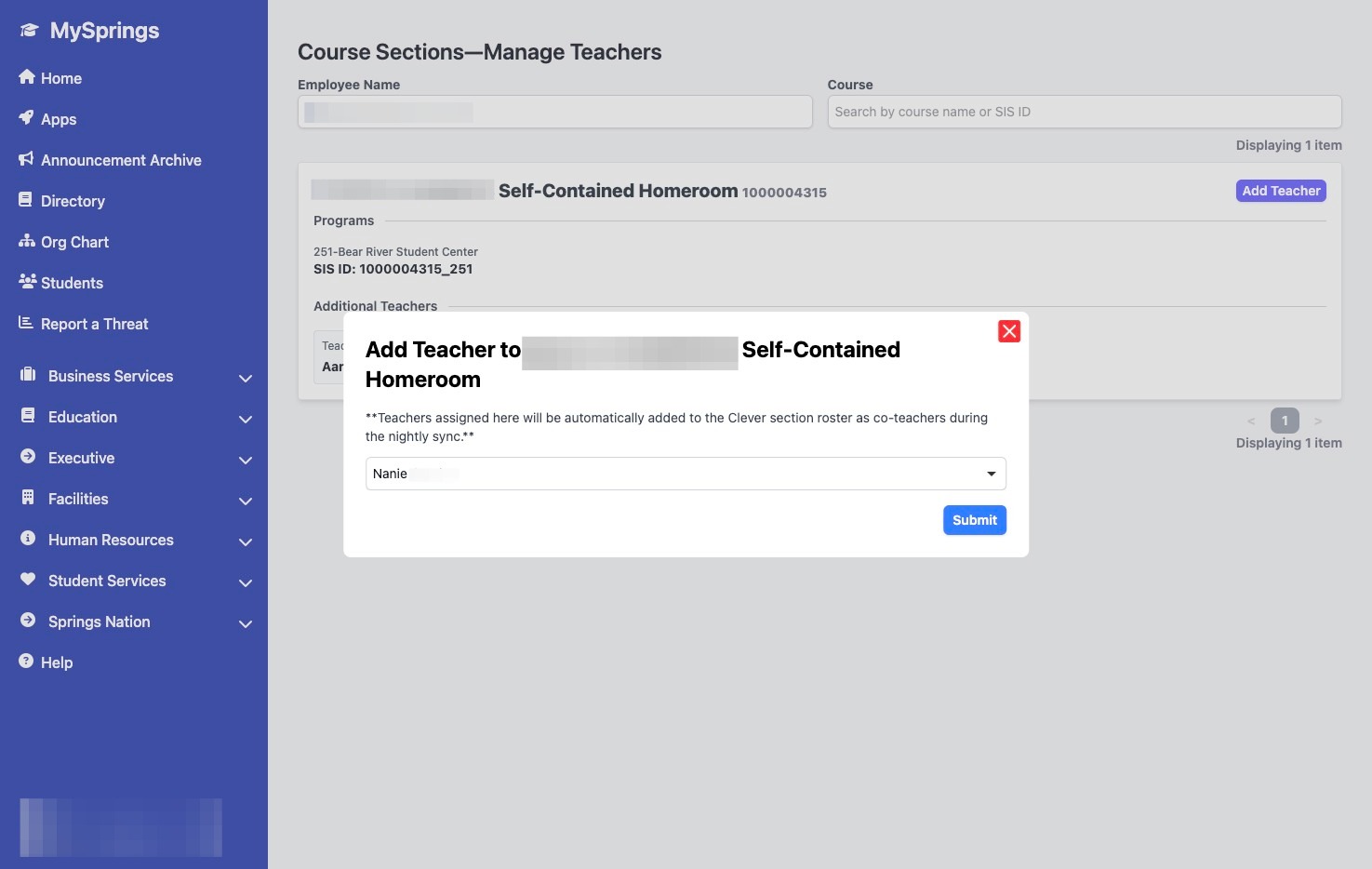
7. Type the name of the co-teacher you would like to add
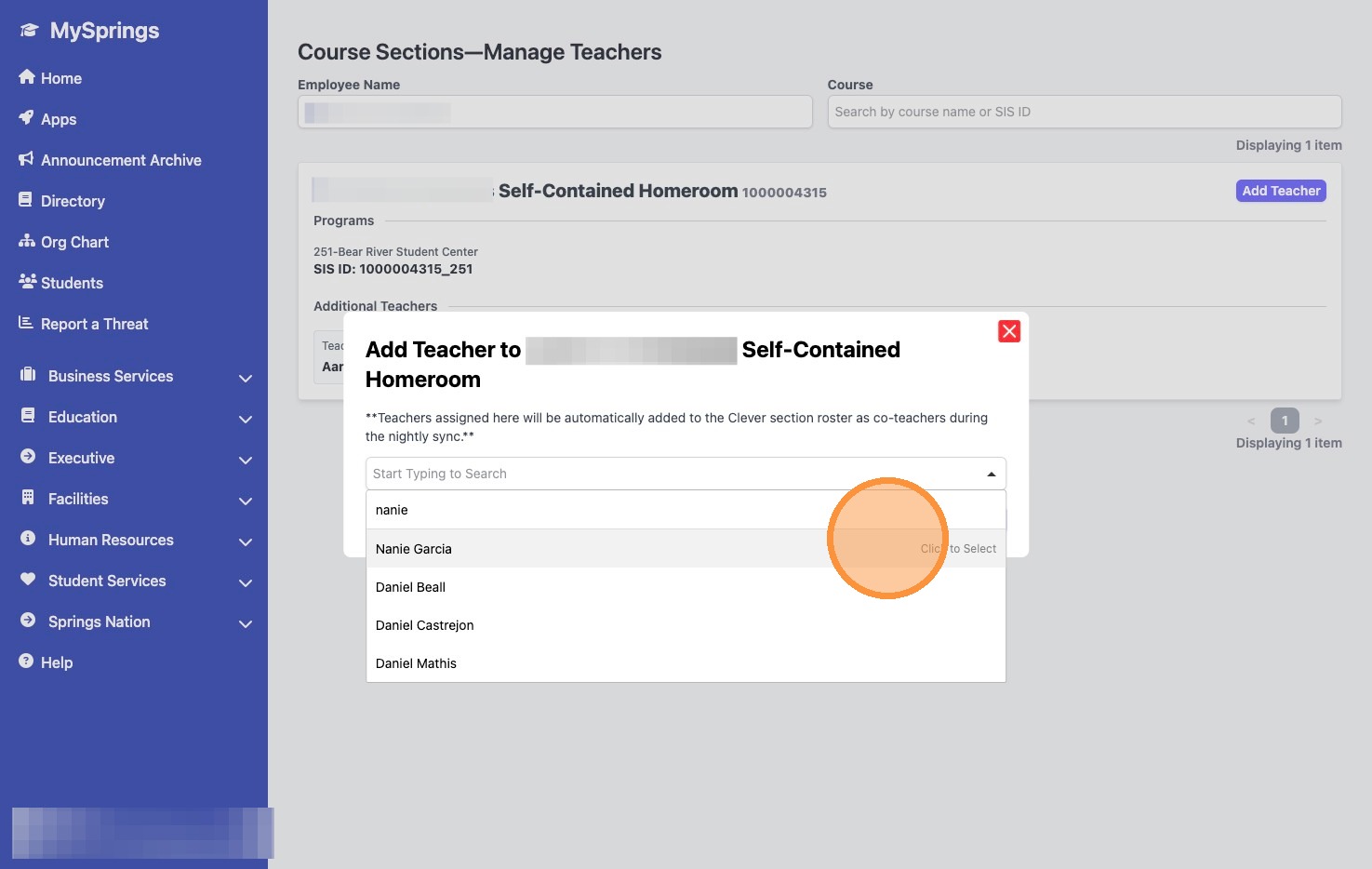
8. Click the teacher's name in the dropdown
9. Click "Submit"
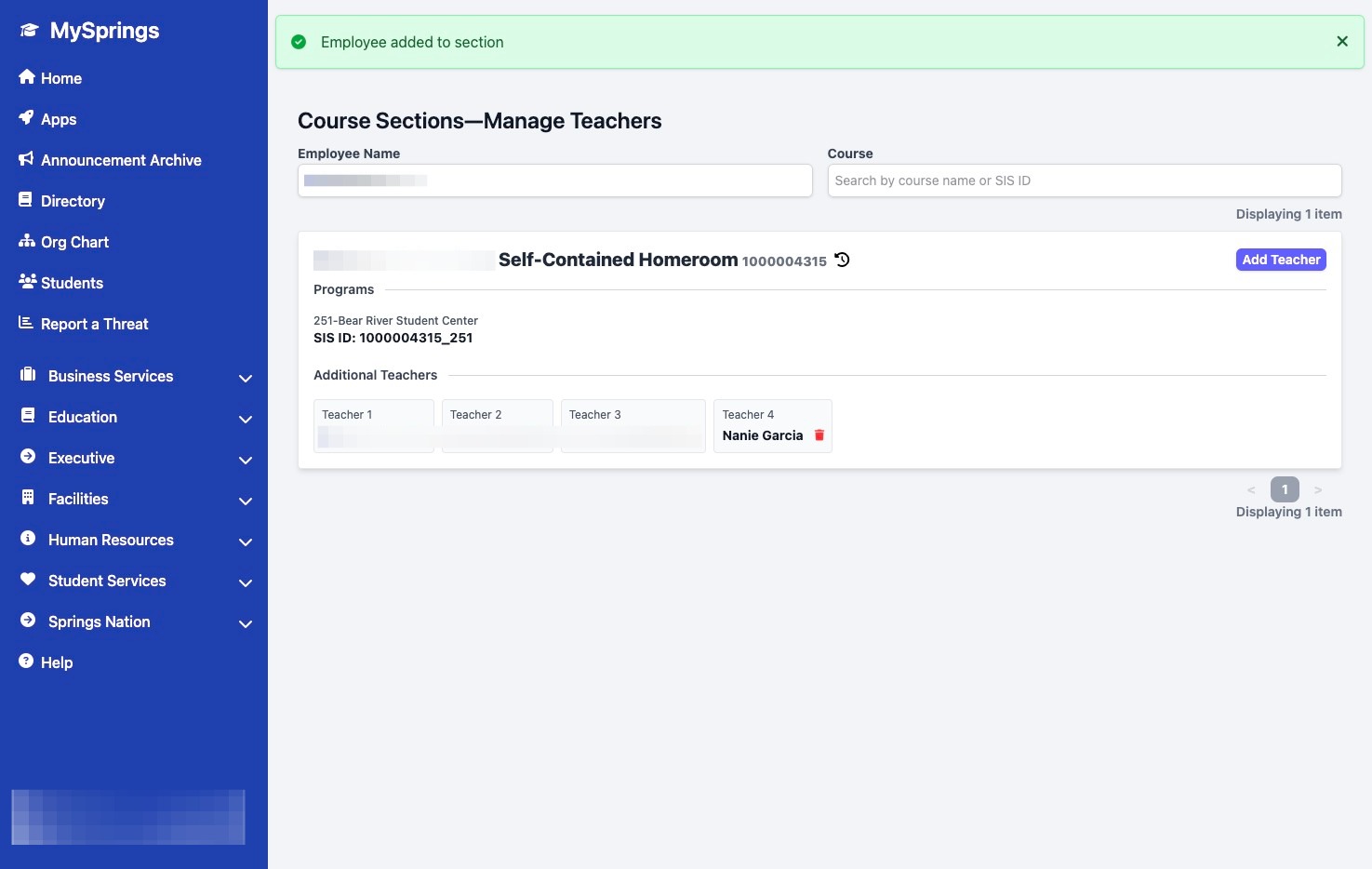
10. The added teacher's name should appear under "Additional Teachers"
Made with Scribe
Comments
0 comments
Please sign in to leave a comment.